
Activating, renewing, and troubleshooting SSL certificates
With an SSL certificate your website is reachable via https, with a padlock in the address bar. At WebOké you get a free Let's Encrypt certificate that renews itself automatically. Below you'll read how to turn it on, how it works with subdomains, and what to do if the certificate has expired or your site still shows 'not secure'.
New domains usually get a certificate automatically, within a few hours of the domain pointing to our server. Don't see a padlock? Then you turn it on yourself in DirectAdmin.
How to turn on the certificate
- Log in to DirectAdmin: in My WebOké go to My Products and click DirectAdmin next to your hosting package.
- Under Account Manager click SSL/TLS Certificates. If you have multiple domains, select the domain at the top right.
- On the Manage Certificates tab you'll see whether there's already a certificate. Does it say the ACME system is disabled? Then go to the ACME Settings tab.
- Turn on Enable ACME, leave the other settings as they are, and click Save Changes at the bottom.
- Go back to Manage Certificates and click Request Now next to Automatic Certificate Provisioning. Confirm the prompt.
The request runs in the background and usually takes a few minutes. After that, the certificate appears in the Certificate List. It covers your domain, www, and also mail, ftp, pop and smtp, and DirectAdmin renews it automatically. If you don't click Request Now, DirectAdmin will do it itself within 24 hours.
A certificate for a subdomain
A subdomain, such as shop.yourdomain.nl, automatically gets its own spot in the certificate. You don't need to order anything separately for it.
- Create the subdomain in Subdomain Management and make sure it points to our server in the DNS.
- DirectAdmin requests the certificate during the next automatic round, within 24 hours. Don't want to wait? Then click Request Now in SSL/TLS Certificates.
- Do you see a certificate on the subdomain issued to the server's name (such as linux2023.webawere.nl), or a message that the name doesn't match? Then the subdomain doesn't have its own certificate yet. Check the DNS and request it again.
- A wildcard certificate (*.yourdomain.nl) is only possible if your domain's DNS is managed at WebOké (ns1.webawere.nl and ns2.webawere.nl). If your DNS is elsewhere, such as at Cloudflare, turn off the Prefer wildcard certificates toggle in ACME Settings. You'll then get a certificate with the individual names, which works just as well.
You can read more about this in Certificate for www, subdomains and wildcard. If the subdomain itself still isn't working, read Created subdomain isn't working.
Request not working?
Is there a list under Failed HTTP Validations? Then Let's Encrypt can't verify those names. Usually the domain doesn't (yet) point to our server, for example because a migration is still in progress or the DNS is hosted elsewhere. After a DNS change, it sometimes takes a few hours before the certificate can be requested. With Domain health you can quickly see whether your domain points to us.
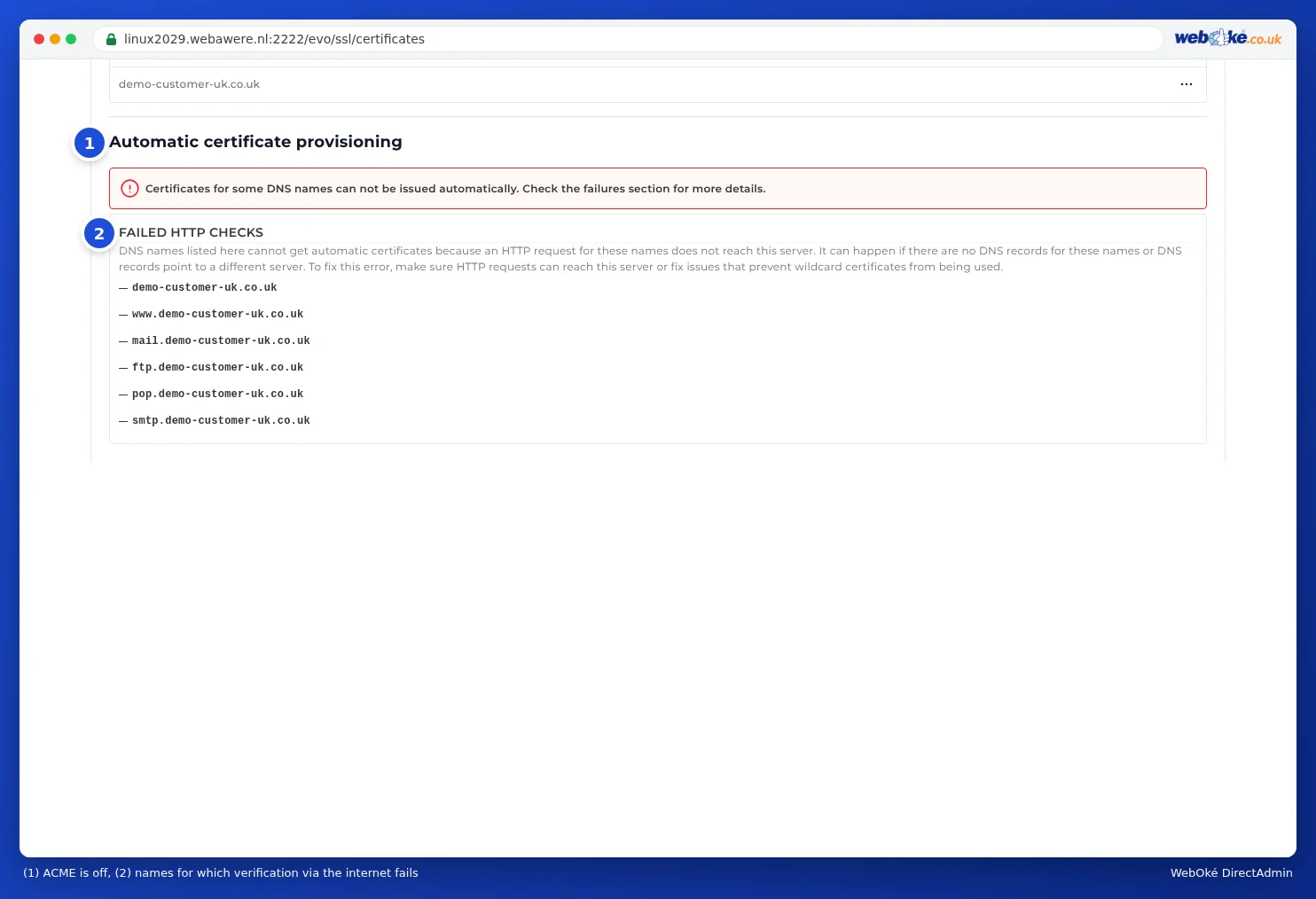
Is only mail, ftp, pop or smtp in the list, and is your email hosted elsewhere? Then that's not a problem: your website will still get a certificate.
Certificate expired or not renewed?
DirectAdmin renews the certificate automatically, but for that Let's Encrypt needs to be able to verify your domain again each time. If the certificate has expired, that verification failed. Go through these points:
- Does your domain still point to us? Check the A record and also the AAAA record (IPv6). If either of the two points to a different server, verification will fail. See How do I check whether my domain points to the right server?
- Are you using Cloudflare's proxy? If the orange cloud is on, temporarily turn it off (grey cloud) until the certificate is issued.
- Is there a CAA record in your DNS? Then letsencrypt.org needs to be listed in it. Add it, or remove the CAA record.
- Is your website blocking the check? Let's Encrypt retrieves a file from the
/.well-known/acme-challenge/folder. A custom rule in.htaccess, a security plugin, or a password protected folder can block that. Temporarily remove such a rule or create an exception for .well-known. - Have you ever uploaded your own certificate? If it has expired or doesn't match the name, remove it in the Certificate List. Then DirectAdmin can request a free certificate again.
- Request the certificate again with Request Now, after you've resolved the cause.
You'll find all the messages and solutions listed in Let's Encrypt not working: causes and solutions.
Certificate active, but still 'not secure'?
Does your certificate work, but the browser doesn't show a padlock or shows a 'not secure' message? Then it's usually one of these causes:
- Mixed content: your page is still loading images, fonts or scripts via http://. Press F12 in your browser and open the Console tab. There you'll see messages with Mixed Content and the address of each element still loading via http. Replace those addresses with https://.
- The name isn't in the certificate: for example, you're opening www, a domain pointer, or a forwarded domain that doesn't have a certificate. Click the icon to the left of the address and check which name the certificate is for. Make sure that name points to us and request the certificate again.
- You're opening the site via http: automatically redirect visitors to https. Read Automatically redirecting visitors to https.
You can read how to fix mixed content in WordPress and other websites in No padlock or 'not secure': fixing mixed content.
Can't figure it out?
Ask the AI assistant in My WebOké to check your certificate, or create a ticket. Mention your domain name and what you see under Failed HTTP Validations.
Detailed explanation with screenshots: Requesting a free Let's Encrypt certificate in the DirectAdmin manual.