
Your email elsewhere: Microsoft 365, Google Workspace, or your own mail server
Do you want the email for your domain to arrive at Microsoft 365, Google Workspace, another mail provider or your own mail server? Then you adjust the MX records of your domain and turn off delivery on our server. Your website simply stays with WebOké.
The fastest way: Quick setup in My WebOké
For Microsoft 365, Google Workspace, Proton Mail and mailbox.org you can set all records correctly with one click.
- In My WebOké, go to My Domains, click on your domain and open the DNS tab.
- Click on the Email settings card under Quick setup for your mail provider.
- You'll see which records will be placed. Existing MX and SPF records will be replaced and Delivery on our server will be turned off for this domain.
- Read under What you still need to do yourself afterwards what you still need to arrange with the provider, such as verifying your domain there and turning on DKIM.
- Click Set up records.
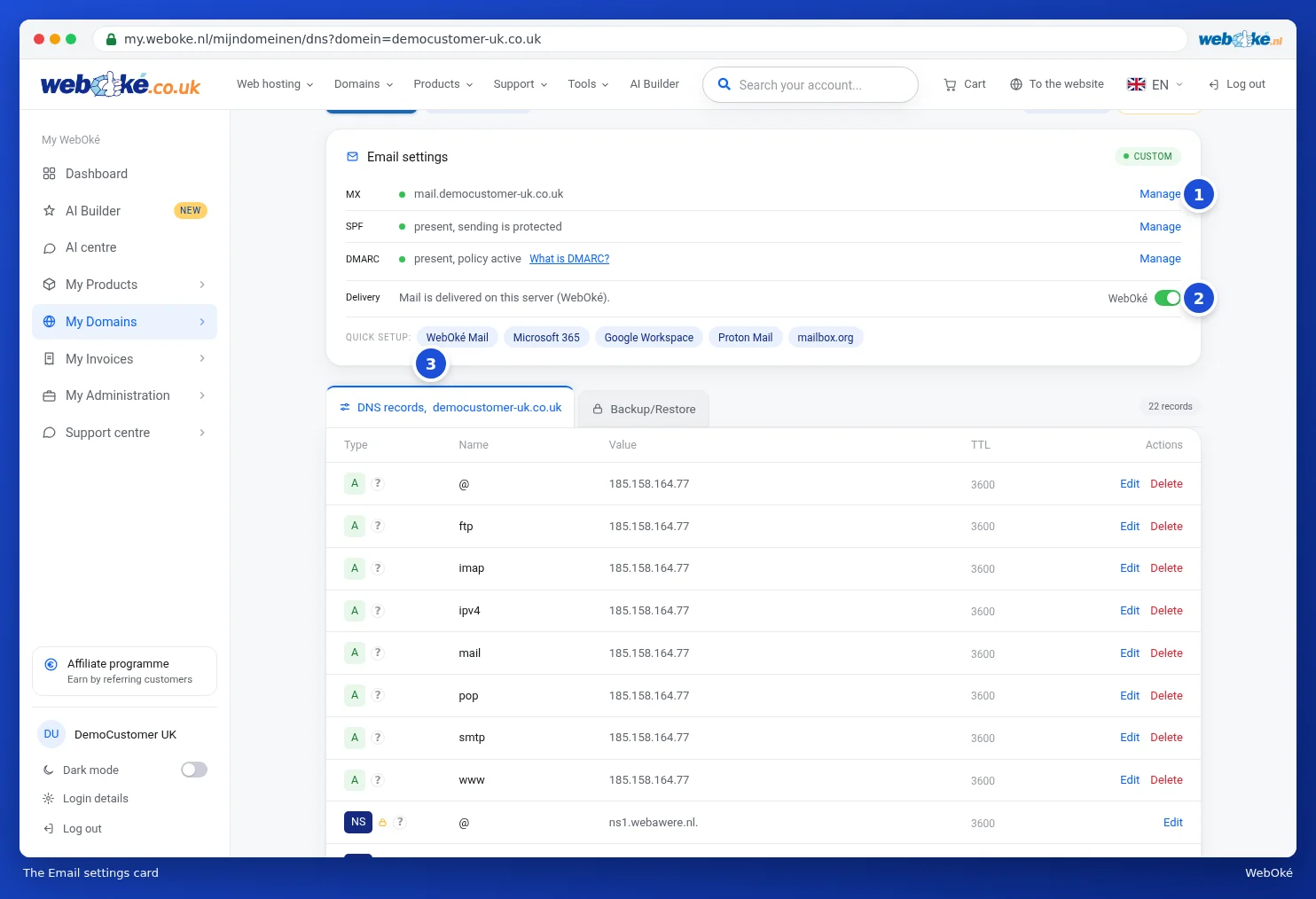
You'll find the same buttons in the Domain / Email health card on the domain page.
Setting it up yourself in DirectAdmin
Prefer DirectAdmin, or using a provider that isn't listed under Quick setup? Then follow all the steps below, otherwise you'll miss mail.
- Verify your domain with the provider. Microsoft and Google ask for a TXT record with a code. Add this in DNS Management and click verify with the provider.
- Set up the MX records correctly. Go to Email Manager › MX Records. Under MX Template choose Microsoft 365, Google Workspace or Zoho Mail and click SAVE below the template. For Microsoft 365, each domain has its own address, such as
yourdomain-com.mail.protection.outlook.com. Check this and adjust it if necessary using the pencil icon. - Turn off the checkbox. On the same page, under Options, remove the checkmark next to Use this server to handle my emails and click SAVE. If this stays on, mail from your own website (such as your contact form) and from other sites on the same server will never reach your new provider. Sometimes the sender gets a
550 Unknown usererror back. - Add to your SPF record. Leave
include:webawere.nlin place, since your website sends mail via our servers. For Microsoft 365, for example, it becomesv=spf1 a mx include:webawere.nl include:spf.protection.outlook.com ~all. For Google you useinclude:_spf.google.com. Read Adding or changing an SPF record in DirectAdmin. - Turn on DKIM with the provider and add the records you receive there. For Microsoft 365, these are two CNAME records (
selector1._domainkeyandselector2._domainkey). Set up both: Microsoft alternates between the two keys. Copy the value exactly from the Microsoft admin center. For domains added since 2025, it ends withdkim.mail.microsoft, for exampleselector1-yourdomain-com._domainkey.yourcompany.n-v1.dkim.mail.microsoft., for older domains withonmicrosoft.com. Both are correct: don't add.comafter it, but do add a period at the end. For Google it's a TXT record (google._domainkey). For Microsoft 365 you also create a CNAME recordautodiscoverpointing toautodiscover.outlook.com.(with the period), so Outlook automatically finds the correct settings.

MX record priority
The priority is a number before the mail server. The lower the number, the sooner that server takes its turn. You type this in yourself, so any number is possible, including 0, 1 or 5.
- If your provider gives one mail server, use the provider's number or 10. Google, for example, gives one record:
smtp.google.com.with priority 1. - If your provider gives multiple servers, copy the numbers exactly.
- Remove the old MX records that point to WebOké. Otherwise part of your mail will still arrive with us.
Your own mail server
Are you running your own mail server, for example at the office? Then set up the DNS like this:
- In DNS Management, create an A record
mailpointing to the fixed IP address of your mail server. If you don't have a fixed IP address but a dynamic DNS name, create a CNAME recordmailpointing to that name, with a period at the end. - Under MX Records, have the MX point to
mail.yourdomain.com.and remove the MX records pointing to WebOké. - Turn off the Use this server to handle my emails checkbox, or in My WebOké set the Delivery switch to External.
- Add your mail server to your SPF record, for example
v=spf1 a mx include:webawere.nl ~all.
Switching back to WebOké Mail
In My WebOké, under Quick setup, click WebOké Mail. In DirectAdmin, choose Local Default under MX Template, turn the Use this server to handle my emails checkbox back on and remove the old provider's include from your SPF record.
Your mailboxes with WebOké continue to exist if your mail arrives elsewhere, but no new mail will come in. DNS changes need some time: usually everything works within an hour, sometimes it takes a few hours. See How long does a nameserver or DNS change take? Is your DNS hosted with another provider? Then read Setting up DKIM when the DNS is with another provider.
Also see in the guides: Setting up email quickly in the DNS, MX records: where does your email arrive? and CNAME records and the trailing period.
Detailed explanation with screenshots: Email with Microsoft 365 or Google Workspace, website with WebOké in the DirectAdmin guide.