
Chapter 7 · 7.3
Installing Nextcloud Files on Mac (File Provider)
On Mac, Nextcloud Files works with Apple's File Provider. This is the same technology used by iCloud Drive and OneDrive. Your files appear in Finder under Places on the left, and a file is only downloaded when you open it.
Step 1: download and install
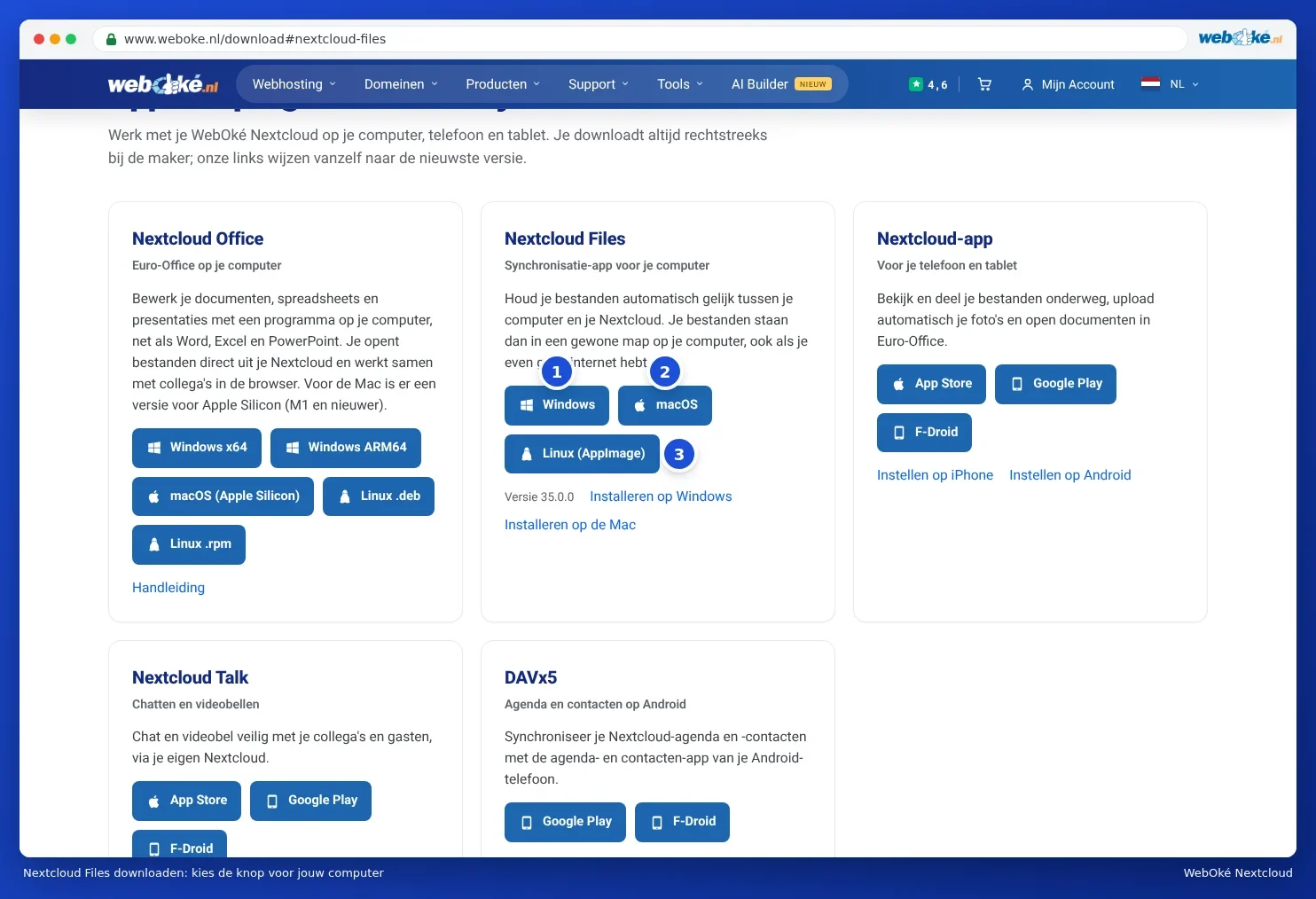
- Go to www.weboke.nl/download and click macOS next to Nextcloud Files (2). Or use this direct link: Nextcloud Files for Mac. You need macOS 13 or newer.
- Open the downloaded file Nextcloud-35.0.0.pkg (the number differs per version) in your Downloads folder.
- Follow the steps in the installer. Your Mac will ask for your Mac password (not your Nextcloud password) to allow the installation.
- Then open Nextcloud from the Applications folder or via Launchpad. The Nextcloud cloud icon appears at the top of the menu bar.
Step 2: connect your Nextcloud
- In the Log in to Nextcloud window, enter the address of your WebOké Nextcloud under Server address and click Log in.
- Your browser opens with Connect to your account. Click Login, sign in with your username, password and login code, and click Grant access. These screens look the same as on Windows; see the images in Installing Nextcloud Files on Windows.
- Back in the app, File Provider is ready and selected as the sync option. Leave it enabled and click Connect.
Step 3: grant permissions
macOS will ask for a few permissions the first time. Grant them, otherwise the app won't be able to sync.
- If you get a notification about an extension or a File Provider, allow it. You can check this later under System settings, General, Login Items & Extensions (the exact name varies slightly per macOS version).
- If your Mac asks whether Nextcloud may access files in certain folders, click Allow. You can review this under System settings, Privacy & Security, Files and Folders.
- If you want the app to start automatically when you turn on your Mac, enable Nextcloud under System settings, General, Login Items & Extensions, under Open at Login.
Step 4: your files in Finder
Open Finder. Your Nextcloud now appears under Places on the left. Click it to see all your folders.
| What you see in Finder | Meaning |
|---|---|
| Cloud icon with a downward arrow | The file is still only in your Nextcloud. Double-click it and it will be downloaded and opened. |
| Pie chart | The file is currently being downloaded or uploaded. |
| Cloud icon with only an outline | Your change hasn't been fully uploaded yet. |
| No icon | The file is on your Mac and matches your Nextcloud. |
| Circle with a pin | You've set this file or folder to always stay on your Mac. |
| Crossed-out cloud icon | The file isn't included in syncing. |
Right-click (or Control-click) a file or folder to see the options. There you can choose, among other things, to always keep something downloaded (Keep Downloaded), let your Mac free up the space again, and set the sharing options for your Nextcloud. More on this in Virtual files: see everything, only download what you open.
Please note: the files are no longer in a regular Nextcloud folder in your home folder, as they were with older versions of the app. Missing files after an update or after switching? Read On Mac: files missing after switching to File Provider.
Prefer a regular folder?
Would you rather have a regular folder where everything is actually stored on your Mac (the classic way)? Click the cloud icon in the menu bar and open the app's Settings. Under General, untick Enable File Provider. This applies to all your accounts. Then set up a classic sync folder for your account. Only do this if you have a good reason, for example a program that doesn't work with File Provider. File Provider and classic folders don't work together: if File Provider is enabled, don't use a classic folder for the same account.
Tip: when disk space is low, your Mac automatically frees up space by moving files you haven't opened in a while back to online only. Your files simply remain in your Nextcloud.