
Chapter 9 · 9.2
Inviting people to an appointment
Watch it in a short video
You can invite colleagues from your own WebOké Nextcloud and anyone with an email address to an appointment. They'll receive an invitation by email and can accept or decline it. Colleagues in your Nextcloud will also see the appointment straight away in their own calendar.
Adding attendees
- Create an appointment or open an existing one, and click More details (see Calendar: views, making appointments, repeating and reminders).
- Under Attendees, type a name or email address in the search field (1). Your Nextcloud searches the users in your package, your contacts, your contact groups and your teams.
- Click the right person. Is someone not listed? Then type the full email address and select it.
- Repeat this for everyone you want to invite.
- Click Save or Update. The invitations go out at that moment.


For each attendee, you'll later see whether they've accepted, declined or haven't responded yet.
Finding a time that works for everyone
Click Find a time (2). The Availability of attendees, resources and rooms window opens. You'll see a weekly overview of when you and your colleagues in your Nextcloud are busy, and under Suggested times moments when everyone is available. Drag the appointment to a free slot and click Done. Availability isn't known for people outside your Nextcloud.
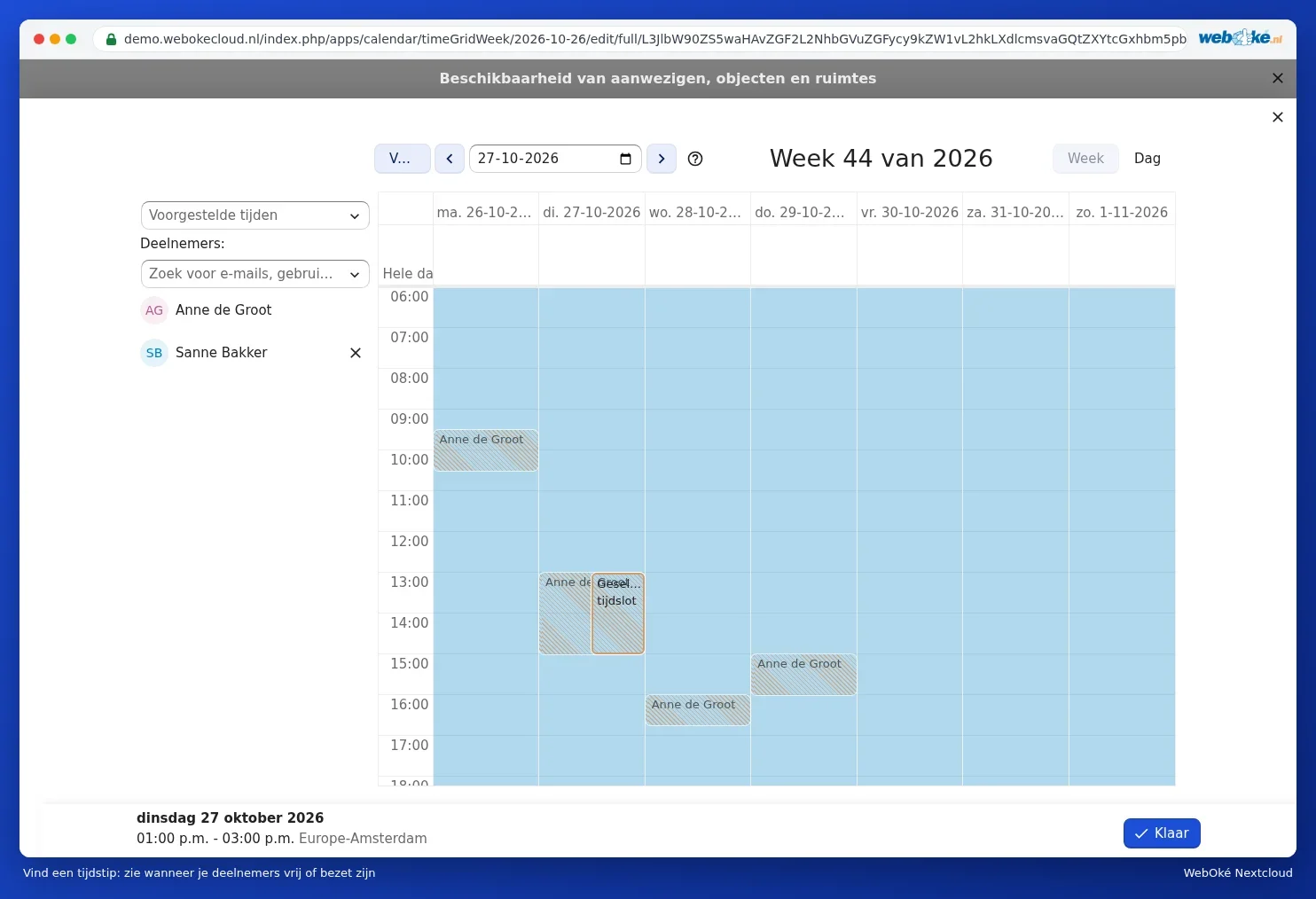
Colleagues can show even more clearly when they're working by filling in their working hours, see Setting working hours and absence.
Who can respond?
On the right in More details, choose whether Anyone with the invitation can respond or Only invited attendees can respond. Choose the latter if you don't want an invitation to be forwarded to people you haven't invited.
Invitations you receive yourself
If a colleague in your Nextcloud invites you, the appointment appears in your calendar with the status Invited. Open the appointment to accept, tentatively accept or decline it. You choose which calendar invitations arrive in under Calendar settings, Default calendar for incoming invitations.
Why doesn't an invitation always arrive?
- You don't have an email address in your profile. Your Nextcloud sends the invitation on your behalf, and needs your email address to do so (see Filling in your profile: name, photo, email address, language and time zone).
- The appointment is in the past.
- You didn't save the appointment after adding the attendees.
- The appointment is in a calendar someone else shared with you.
- The invitation has landed in the recipient's spam folder.
You can find out how to check this step by step in Appointment invitations that don't arrive.
Please note: if you invite a contact group or a team, the members will receive an invitation. If someone joins the group or team later, they won't automatically receive the existing appointment.